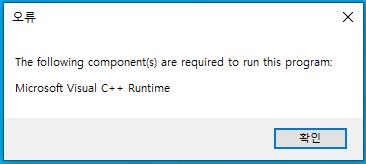
If you encounter errors while installing or launching The First Descendant, please select the relevant category on the right
to find the error symptoms and solutions.
If you experience game launch errors after an update, please try the solutions below before relaunching the game.
| Categories | Solution |
| Verify File Integrity | [STEAM] Right-click The First Descendant in Steam Launcher > Properties > Installed Files > Click [Verify integrity of game files]
|
| Reinstall Graphics Card Driver | 1) Download DDU (Display Driver Uninstaller)[Go to Link] . 2) Boot in Safe Mode. 3) Run DDU and remove the Graphics Driver. 4) Install a Graphics Driver from 1-2 months ago and relaunch the game. |
| Delete Game Settings Data | 1) Press "Windows key + R" to open Command dialog. 2) Type "appdata" in the input field and press Enter. 3) Navigate to the "Local > M1" folder. 4) Delete the "Saved" folder inside. |

System Requirements & Memory Issues
| Issue | Guide |
| When the message "Gameplay may be unstable. Please check the minimum system requirements.” appears | Your system may be below the recommended specifications.
If your system doesn't meet the recommended specifications, you may experience performance issues. Please refer to the recommended specifications for optimal gameplay.
|
| How to Check PC Specifications | Here's how to check your operating system and hardware specifications.
■ Windows PC and Hardware Information 1) Windows key > Type dxdiag in Command > Check System and Display tab information. 2) Windows key > Type Pause in Command > Check OS Build and System Information. |
| If you see the "Out of video memory" error message and the game forcibly closes, | crash issues have been reported with some 13th and 14th generation Intel CPUs.
On some PCs using these CPUs, when running the game, you may see the "Out of video memory" error message followed by the game forcibly closing. This can be partially resolved by adjusting power limits in the BIOS settings. We have requested that Intel investigate this issue. |
| Issue | Guide |
| [XBOX] When Games or Apps Won't Install | If you're having trouble installing games or apps on your Xbox console, please try the following solutions.
1) Check Xbox Status 2) Sign in with the correct Xbox profile 3) Check hard drive space 4) Check for system updates
For more detailed solutions for each item, please visit the Xbox homepage below. |
| [XBOX] When Games Crash or Won't Launch | If you're experiencing issues with games crashing or not launching on Xbox, you can resolve these issues through the following methods.
1) Check known issues 2) Restart the game 3) Power cycle the console 4) Test network connection 5) Try a different profile 6) Delete and re-add your profile 7) Clear the local save and re-sync with Cloud
For more detailed solutions for each item, please visit the Xbox homepage below. |
| [PS5] When Game Downloads Freeze | 1) Check the PSN Status Page. If there are warnings, wait for service to be restored before trying again.
2) To check the internet connection, go to Settings > Network > Connection Status then select Test Internet Connection. If you have internet issues, check the troubleshooting steps in the FAQs below.
3) Start console in Safe Mode then select Clear Cache and Rebuild Database to create a new database for all content.
For more detailed solutions for each item, please visit the PlayStation homepage below. |
| [PS5] When Games Won't Download | 1) Go to Downloads/Uploads in the Control Center and select the download. Select Pause and Resume to restart.
2) If the problem persists, select Cancel and Delete to remove the game from the download list. Find the game in your game library then try again.
3) Check the PSN Status Page. If there are warnings, wait for service to be restored before trying again.
4) Verify that your console has the latest system software installed. Go to Settings > System > System Software > System Software Update and Settings. ☞ Update PS5 Console System Software
5) Check if you have enough storage space to download the game. To find the space needed for the game, go to your game library then Select Game > ... (More) > View Product. The minimum free storage space is displayed on the right side of the screen. To view available storage on your PS5 console, go to Settings > Storage. ☞ PS5 Console Storage Space Management Game Search and Download
6) Start console in Safe Mode and select Clear Cache and Rebuild Database to create a new database for all content.
For more detailed solutions for each item, please visit the PlayStation homepage below. |
| Issue | Guide |
| [STEAM] Network Connection Issues | If you experience network connection issues with Steam, please follow the steps below.
1) Check Steam Server Status Please check for any system-wide outages on the Steam Server Status page. If you receive a timeout error when accessing the Steam website, this indicates a system-wide issue that must be resolved before service can resume.
2) Check Router You can isolate router-related issues by following the procedures outlined in the "Using Steam with a Router" section. If possible, try connecting directly via ethernet cable to access Steam.
3) Resolve Firewall Issues Check and configure your firewall for Steam by following the instructions in the "Using Steam with a Firewall" document. Note: If you've just installed Steam for the first time or Steam has recently updated, even if it worked correctly before, your firewall might be preventing Steam from connecting to the network.
4) Close Background Applications Refer to the list of programs that may interfere with Steam and identify programs that could be blocking connections to Steam and Valve games. Reset, disable, or remove these programs.
5) Viruses, Trojans, Adware, Spyware Check your computer for these threats by referring to the section about viruses, adware, and spyware that interfere with Steam. |
| [STEAM] Client Launch Issues | If the Steam client suddenly stops, fails to start correctly, or closes immediately after launch, please verify that Steam is correctly installed using the methods below.
1) Restart your computer and launch the Steam client. 2) Download Steam from http://store.steampowered.com/about/ then reinstall it in the original installation location. Reinstalling Steam in the same location will preserve all your previously installed games.
If you still experience launch issues, please check your PC by referring to the Steam Homepage FAQs. |
| [STEAM] How to Install the Launcher | If you're playing The First Descendant through the Steam platform, you need to log in to the Steam website and install the Steam Launcher.
☞ Go to Steam Launcher Installation
■ Steam Launcher Installation Steps 1) Click the Steam Launcher shortcut 2) Click the INSTALL STEAM button 3) Download and run the installation file 4) Launch the Launcher > Enter Steam account and password to log in |
| Error Code | Solution |
| 0xE3010101 | (▼ See image below the procedure table) Please allow Nexon Game Security (BlackCipher.aes) in your antivirus or firewall settings and run it again. |
| 0xE3010103 | |
| 0xE3010104 | |
| 0xE3010106 | |
| 0xE3010201 | |
| 0xE3010202 | |
| 0xE3020302 | |
| 0xE3020303 | |
| 0xE3020304 | |
| 0xE3020305 | |
| 0xE3010501 | |
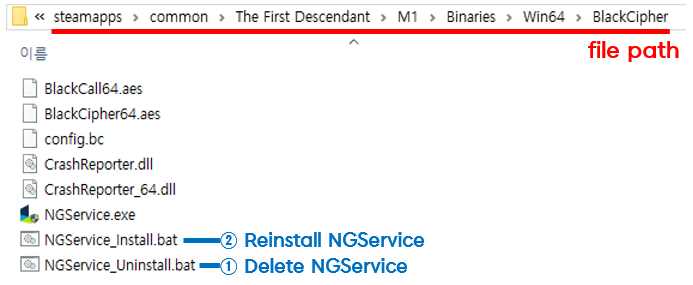
| 0xE3010502 | (▼ See image below the procedure table) 1) Delete the NGService file from the game installation folder, then reinstall it. |
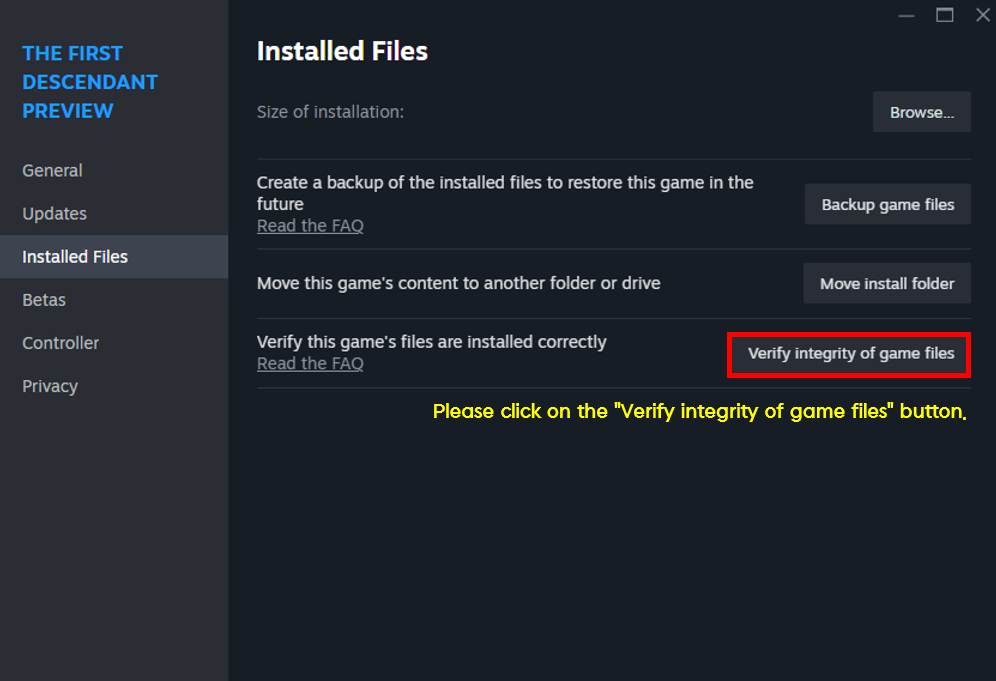
| 0xE3010504 | (▼ See image below the procedure table) Run the game launcher integrity check. |
| 0xE3010505 | (▼ See image below the procedure table) 1) Use the files provided during game installation to remove and reinstall NGService. |
| 0xE3010507 | |
| 0xE3010508 | |
| 0xE3020101 | |
| 0xE5000104 | |
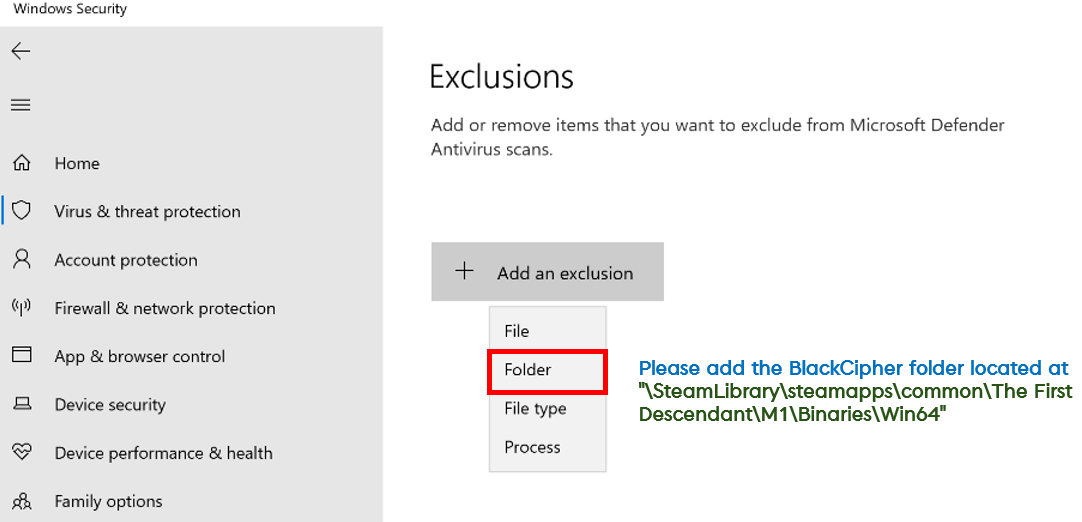
| 0xE3010509 | (▼ See image below the procedure table) 1) Allow the BlackCipher folder in your antivirus or firewall settings, then run it again. |
| 0xE5000103 | |
| 0xE5000105 | |
| 0xE5000109 | |
| 0xE5000101 | (▼ See image below the procedure table) Allow the BlackCipher folder in your antivirus or firewall settings, then run it again. |
| 0xE5000102 | |
| 0xE3000202 | Please reinstall the game client. |
| 0xE3010203 | |
| 0xE3010204 | |
| 0xE3010205 | |
| 0xE3010206 | |
| 0xE3010306 | |
| 0xE3010401 | |
| 0xE3010402 | |
| 0xE3020501 | |
| 0xE3020502 | |
| 0xE3010302 | Please restart your PC, then launch the game again. |
| 0xE3010303 | |
| 0xE3010304 | |
| 0xE3010305 | If a Nexon Game Security pop-up appears while starting the game, click "Yes" to proceed. |
| 0xE3010503 | |
| 0xE5000100 | |
| 0xE5000106 | |
| 0xE5000107 | |
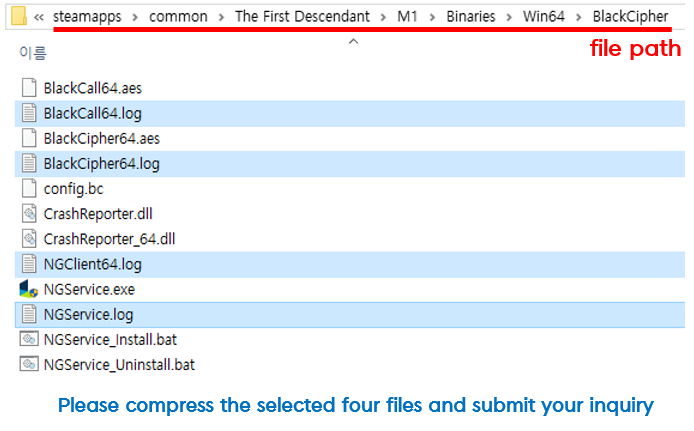
| 0xE3000000 | Please submit an inquiry with the following information. |
| 0xE3000101 | |
| 0xE3010000 | |
| 0xE3010107 | |
| 0xE3010108 | |
| 0xE3010207 | |
| 0xE3010301 | |
| 0xE3010506 | |
| 0xE3020000 | |
| 0xE3020202 | |
| 0xE3020203 | |
| 0xE3020204 | |
| 0xE3020205 | |
| 0xE3020301 | |
| 0xE3020401 | |
| NGS reset failed | This error typically occurs when game execution is blocked by antivirus software.
You can run the game normally by adding The First Descendant folder or executable file as an exception to your antivirus software.
If you find it difficult to add an exception, you can temporarily disable your antivirus before launching the game.
However, if you use this method, for the security of your PC, please make sure to re-enable your antivirus after the game is running. |
▼ How to Delete and Reinstall NGService Files
| Steam Installation Path |
|
|
▼ How to Run Game Launcher Integrity Check
| Steam Installation Path |
| Right-click The First Descendant in the Steam Launcher > Properties > Installed Files > Click [Verify integrity of game files]
|
▼ How to Check NGS Log File Location
| Steam Installation Path |
|
|
▼ How to Allow BlackCipher Folder
- Run Windows > Windows Security > Virus & Threat Protection > Virus & Threat Protection Settings > Click Manage settings
| Issue | Guide |
| When Easy Anti-Cheat "unknown file version" error messages appear | When the message related to [unknown file versions] appears, it may occur due to damaged or modified by external factors.
In this case, please follow the steps below before launching the game.
1) Verify File Integrity then Launch the Game [STEAM] Right-click The First Descendant in Steam Launcher > Properties > Installed Files > Click [Verify integrity of game files]
2) Delete EAC Files and Verify Integrity - If the same issue persists after verifying file integrity in step 1, delete [EACLaunch.exe] from the game installation folder then verify integrity.
3) Reinstall Client - If the problem persists after verifying file integrity, delete The First Descendant client and download it again to run the game |
| When Easy Anti-Cheat Integrity Verification Fails | If Easy Anti-Cheat integrity verification fails, please follow the steps below.
1) Close Conflicting Programs This can occur when third-party programs like MSI Afterburner or Nvidia Panel are running. Try closing these programs.
2) Verify Game File Integrity Related errors can occur if game files are corrupted. Check the integrity of game files, and if there are errors, delete the entire game folder and reinstall it.
■ Game File Integrity Verification Path [STEAM] Right-click The First Descendant in Steam Launcher > Properties > Installed Files > Click [Verify integrity of game files]
3) Windows Update If Windows updates are pending, updating to the latest Windows version may help it run smoothly.
4) Reinstall Easy Anti Cheat Try repairing Easy Anti Cheat using the method below. ① Navigate to the game installation folder. - Default Installation Path: C:Program Files (x86) > The First Descendant > EasyAntiCheat ② Right-click EasyAntiCheat_setup and run as administrator. ③ Select "The First Descendant" from the dropdown menu and click Repair Service. ④ Restart the game. |
| Easy Anti-Cheat execution error (10011 or 30005) When the message appears, | if an Easy Anti-Cheat execution error occurs, please follow the steps below.
1) Update Drivers Update your graphics card drivers to the latest version. [Link]
2) Check Anti-virus Program Add the "Easy Anti-Cheat" program to your anti-virus program's exemption list. |
| When the error message "The redistributable package (EasyAntiCheat_Setup.exe) was not installed successfully. Setup cannot continue." appears. | If Easy Anti-Cheat installation fails, please follow the steps below to install it.
1) Navigate to the game installation folder. Default Installation Path: C:Program Files (x86) > The First Descendant > EasyAntiCheat 2) Right-click EasyAntiCheat_setup and run as administrator. 3) Select "The First Descendant" from the dropdown menu and click Repair Service. 4) Restart the game. |
| Error Details | Guide |
| When the DirectX Runtime error message appears | This issue is caused by an outdated version of DirectX. Please install the latest version of DirectX. [Link] |
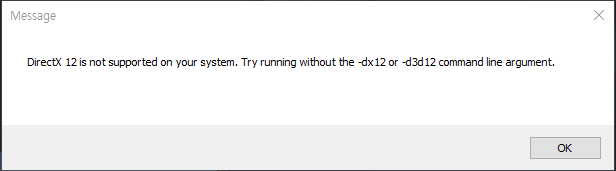
| When the "DirectX 12 is not supported on your system" error message appears | If the game cannot be launched with the error message below, please follow the steps provided then try launching the game again.
1) Update Windows to the Latest Version Follow Control Panel > System and Security > Windows Update to update Windows to the latest version.
2) Update Graphics Card to the Latest Version [Download]Update to the latest version of the driver 3) When using Steam Steam Launcher > Library > The First Descendant > Right-click > Properties > General > Enter the following words in the Launch Options window before attempting to play: - Terms to Enter: -dx12, -d3d12 |
| When the OPENGL32DLL error message appears | This issue is caused by an outdated version of DirectX. Please install the latest version of DirectX. [Link] |
| "DX11 Feature Level 10.0 is required to run the engine." When this message appears, | the issue mentioned is caused by outdated drivers on your PC.
Please install the latest drivers before launching the game to ensure a smooth gaming experience.
■ Error Resolution Steps 1) Install the latest version of [DirectX] [Click] 2) Install the latest version of the [Graphics Drivers] [Click] |
| If you see a driver information warning message | This notification alerts you that graphics card drivers are required for game stability.
For safe gameplay, although it may be inconvenient, please update your graphics card drivers to the latest version.
|
| Issue | Guide |
| When an antivirus blocks the client | If your antivirus program blocks The First Descendant client, please submit an inquiry with screenshots or logs of the blocking message along with the name of your antivirus program.
Please also, try running the game using the temporary solution below.
■ Temporary Solution 1) Antivirus Program > Scan Exclusion Management > Select and save files or folders to exclude from scanning (The First Descendant) 2) Antivirus Program > Quarantined and Trusted Items > Select TheFirstDescendant.exe from the quarantined program list and restore |
| "Microsoft Visual C++ Runtime" error message occurs | If the game cannot be launched with the error message below, please follow the steps provided then try launching the game again.
1) Install Microsoft Visual C++ Redistributable Package [Link] 2) Restart your computer. 3) Relaunch the game. |
| In case of severe crashes/stuttering | Crashes/stuttering may occur in the following cases:
1) When the network connection is unstable 2) When there are conflicts with other programs 3) When infected with viruses or malware 4) When your device specifications are below the game requirements
■ Temporary Solutions for Crashes 1) Close all programs except The First Descendant 2) If using a router, try connecting your computer directly to the internet via LAN cable 3) Update your antivirus program or run a thorough scan to treat virus and malware infections |
| If you receive a message about illegal program detection | When the security program detects unauthorized programs, the game may be terminated.
If the game continues to close, please check for and remove any unauthorized programs.
[Start] > [Control Panel] > [Uninstall Programs] > [Select Unauthorized Program] > [Uninstall] Or, remove the folder containing the unauthorized program.
If the issue persists after deletion, please provide the information below in your inquiry, and we will thoroughly review and respond to it.
■ Required Information 1) Account Name: AccountName#(4 digits) 2) Attach a game screenshot showing your account name 3) Error Message: (Please provide the complete error text) 4) Presence of Abnormal Programs on PC: Y or N (Macros, unauthorized programs, etc.) 5) Date of Error Occurrence: (If it occurred before, please include previous dates) 6) For persistent errors, please attach the following file with your inquiry. - Path: Game Installation Folder - BlackCipher Entry - NGClient64.log / BlackXchg.log / BlackCall64.log / BlackCipher64.log |