
| ㆍ Social is a place that provides community features to Descendants, such as finding nearby players, searching, listing of recently played players, registering friends, inviting to parties, and accepting Support Requests. ㆍ Select a user from the Player List, the character name from the chat box, or press and hold (T) near the user to open the Interaction menu to invite to your party, send a friend request, whisper, or report in Social. |
1. What is Social?
Social is a place that provides community features to Descendants, such as finding nearby players, searching, listing of recently played players, registering friends, inviting to parties, and accepting Support Requests.
The Social screen is consisted of the following below.
| Title | Details |
| Player List | Displays a list of players in the city or outpost of where the user is located. |
| Recent Players | Displays a list of players you have recently created a party or did missions with. |
| Friends | Displays a list of players you are friends with. |
| Search Player | Searches for the user you wish to socialize with. |
| Received Requests | Allows you to check for friends or party requests you have received. |
| Support Requests | Allows you to check for all received Support Requests. |
2. Interaction Menu
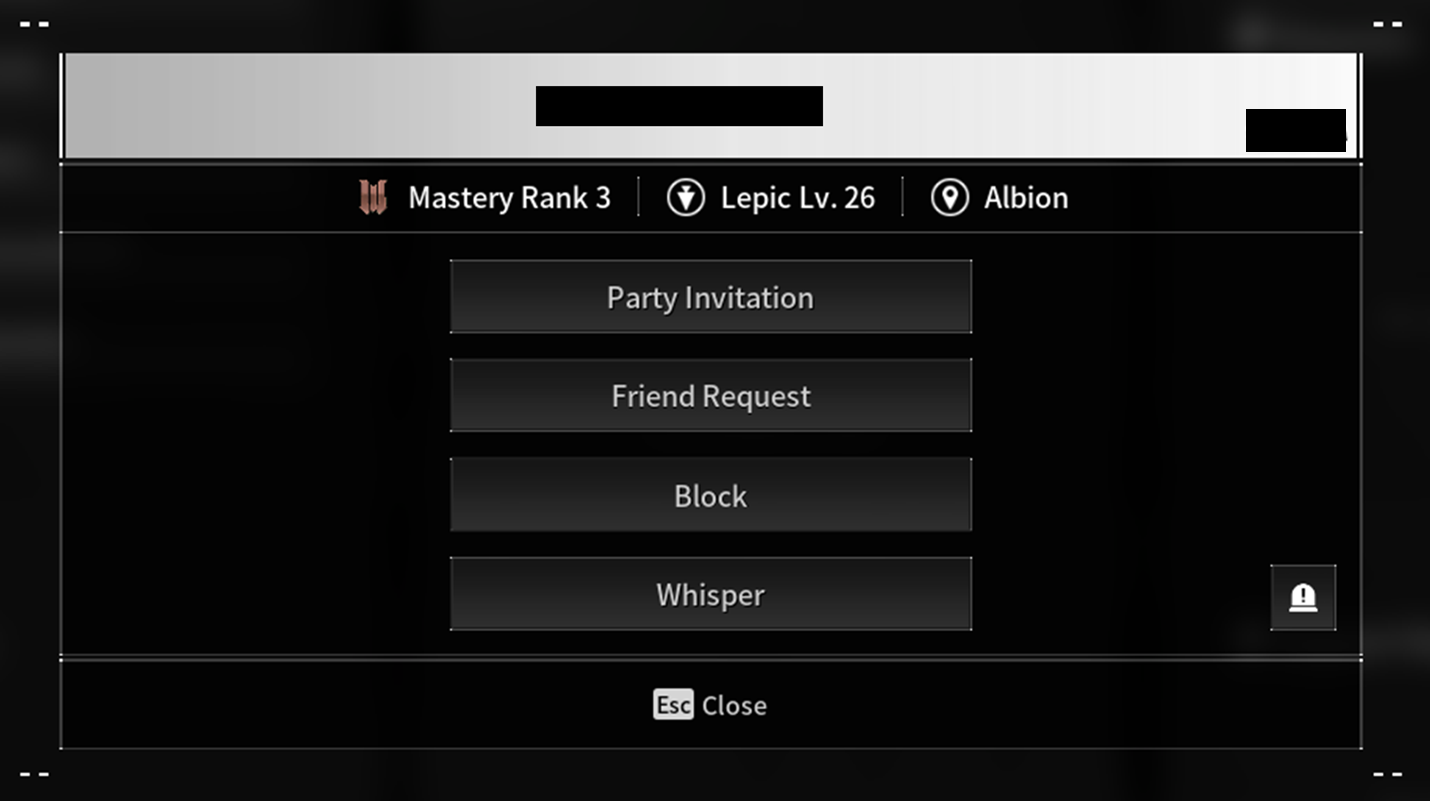
Select a user from the Player List, the character name from the chat box, or press and hold (T) near the user to open the Interaction menu to invite to your party, send a friend request, whisper, or report in Social.
| Title | Details |
| Party Invitation | Create parties with other users through Party Invitations. |
| Friend Requests | Become friends with other users through Friends Requests. |
| Block | Blocks party matching and chats with the user. |
| Whisper | Send a private message to the user. |
| Report | Report players using the Report button on the bottom right. |
|
<Interaction Menu Screen> |
3. Friend Requests/ Party Invitation
You can send friend requests and invite others to your party in the Interaction Menu.
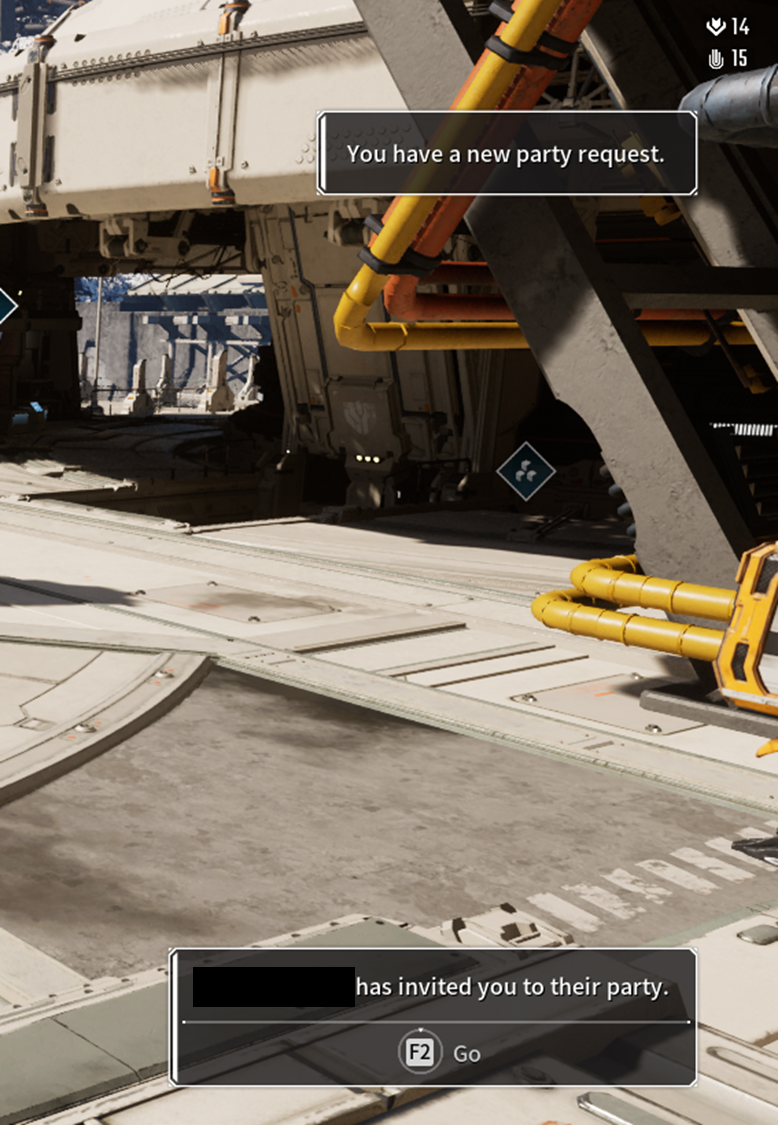
A pop-up message will appear on the top right part of your screen once you receive a friend or party request. For party invitations, press and hold F2 to see view the details.
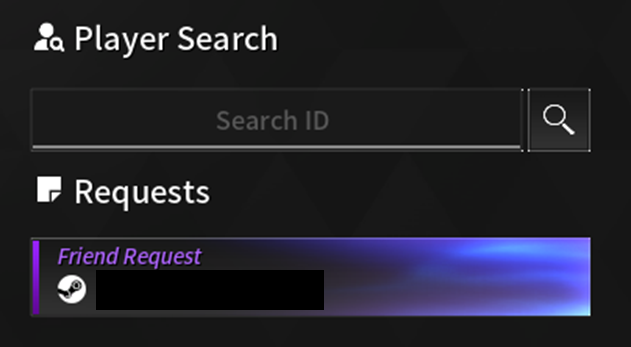
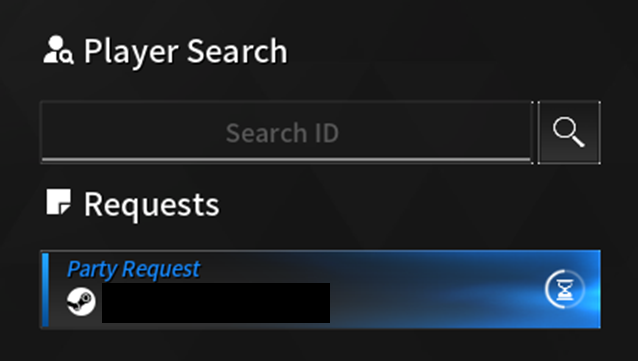
You can check pop-up messages again in Social > Received Requests.
* Check Friend Requests/ Party Invitation: Map (G) > Social > Received Requests on the top right
|
<When receiving a party request, a pop-up message will appear on the top and bottom right.>
<You can check your friend and party requests in Received Requests. Party requests will disappear if not accepted after a certain period of time.> |
4. Friends
Allows you to check the online status of users who have become your friend.
The friend list can be checked in Social, and you can add up to 50 friends.
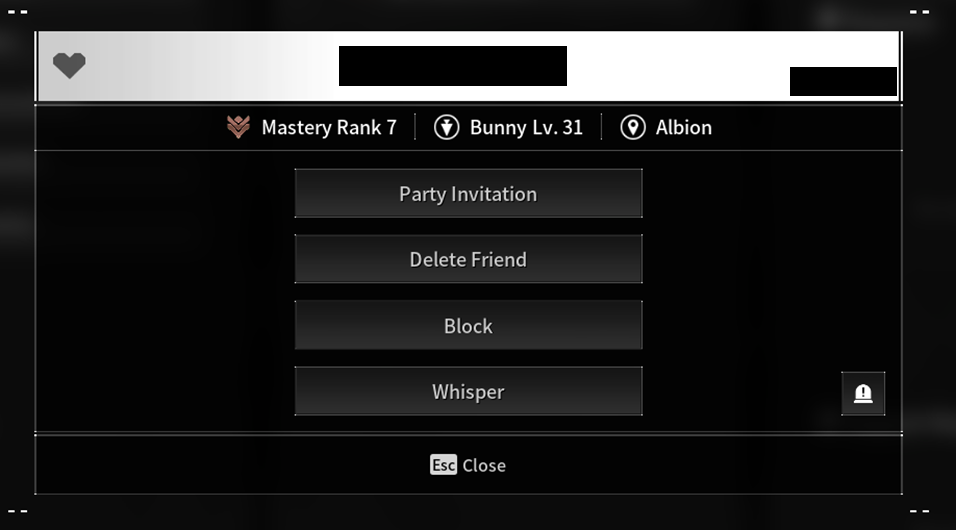
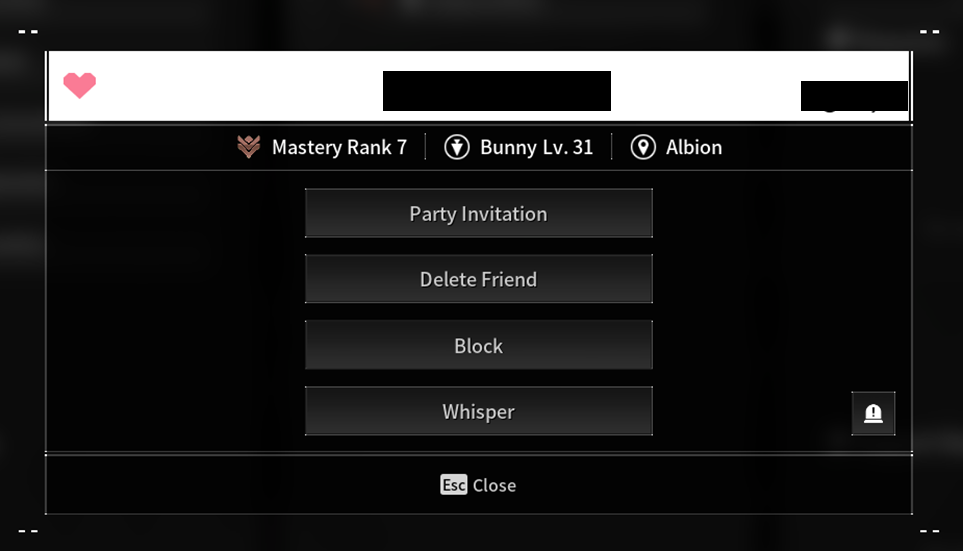
The friend list is sorted alphabetically, and friends added to Favorites will be displayed on top.
* Adding a friend to Favorites: Map (G) > Social > Friends > Select the user to be shown on top > Left click on the heart
|
<Friends not in Favorites>
<Friends in Favorites> |
5. Party
Play together with other users in the party when going on battlefield missions or starting a Void Intercept Battle.
Only the party leader can move zones and request for entering dungeons in a party.
The party leader can use the Interaction Menu to delegate a leader or kick members.
|
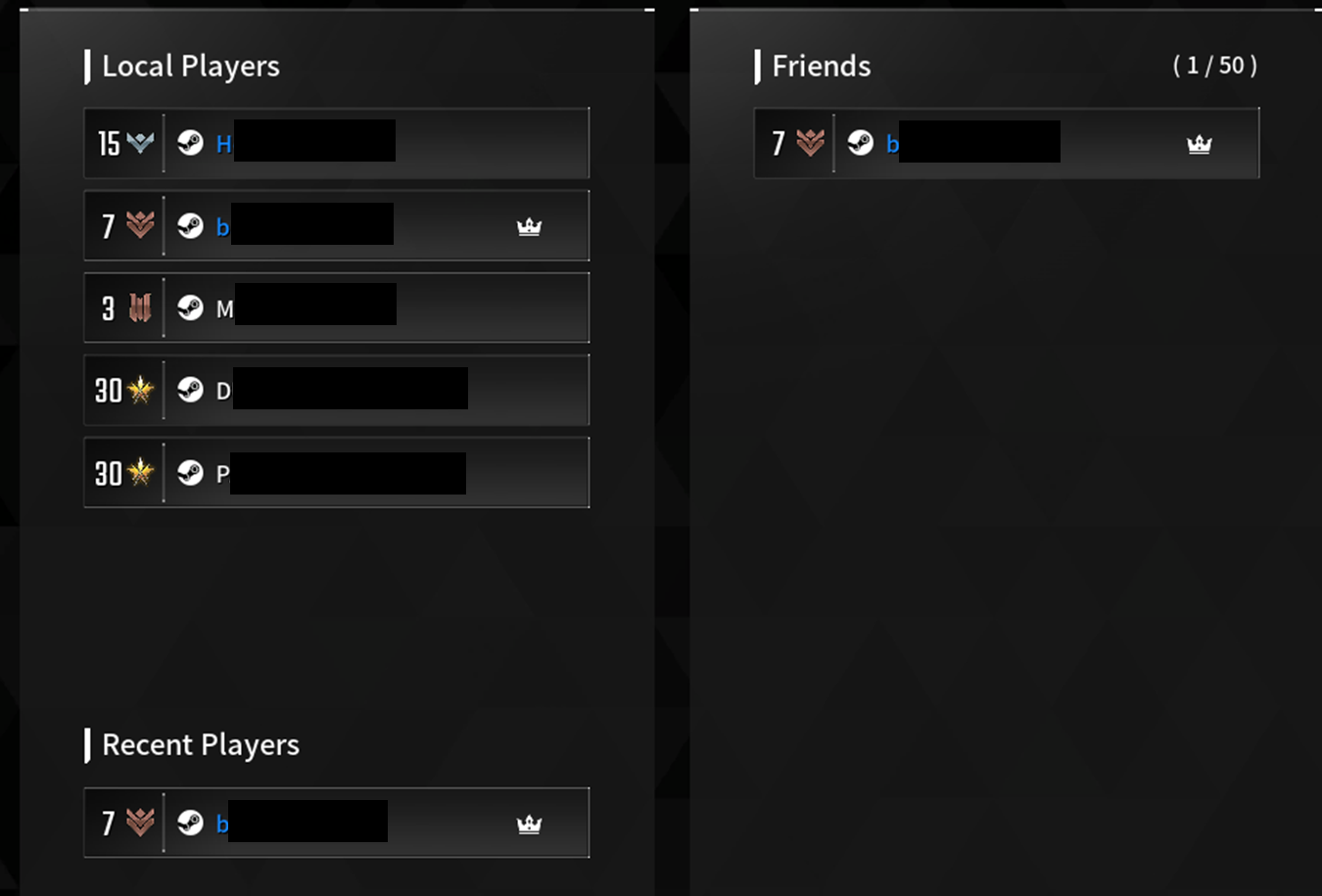
<Nicknames of users in your party will be displayed in blue, and the party leader will have a crown icon displayed.> |
6. Support Requests
You can request for support for random users or friends in the same battlefield when going on a solo mission.
Accepting a Support Request will transport you to the user to fight together in the battlefield mission.
However, if the number of players on the battlefield where the user is requesting support exceeds the player limit, the requester's mission will be paused and restarted in a new battlefield with the new players.
A Support Request cannot be requested again if there are no joining players during the requested time.
* Requesting Support: Game Menu (ESC) > Support Request (Only activated when on a solo mission) > Normal Support Request (T) or Friend Support Request (R)
* Accepting Support Requests: Map (G) > Social > Support Request on the bottom right
| <Requests will disappear if not accepted after a certain period of time.> |