1. Game Menu
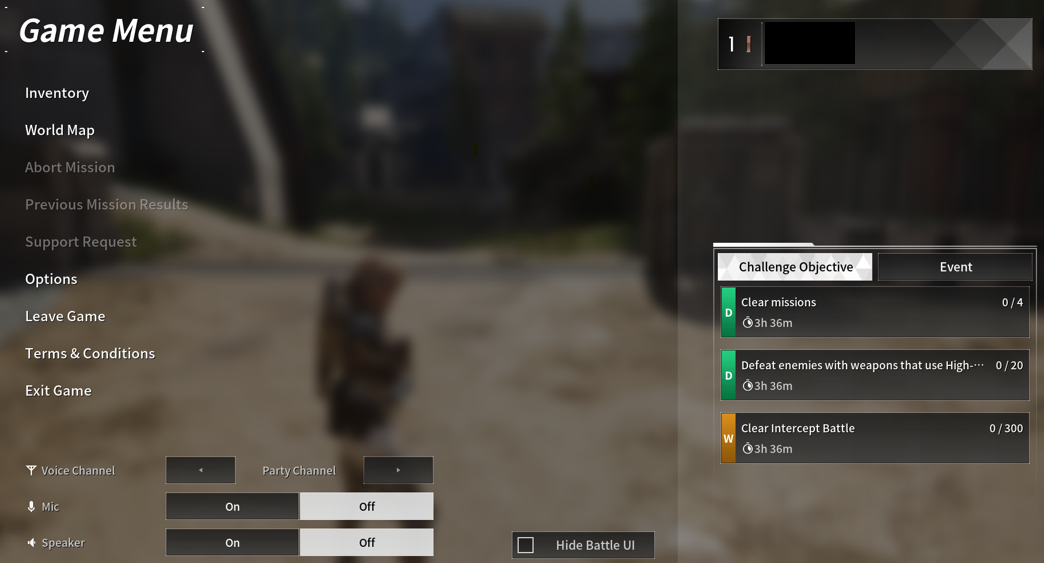
The menu list can be displayed by clicking Menu (ESC) while in-game.
In the menu list, you can select and navigate to the main menus such as Inventory, World Map, and Options.
On the right side of the UI, you can check the set Challenge Objective and events in progress.
* You can set/unset Challenge Objectives by going to Inventory (I) > Battle Pass > Challenges List and left-clicking on an item.
2. Inventory
The following settings are available using the respective buttons located at the bottom of the Inventory (I) > Equip Weapon (A) screen.
Junk filter and Favorites UIs are displayed when equipping weapons as well as selecting reactors or external components.
|
|

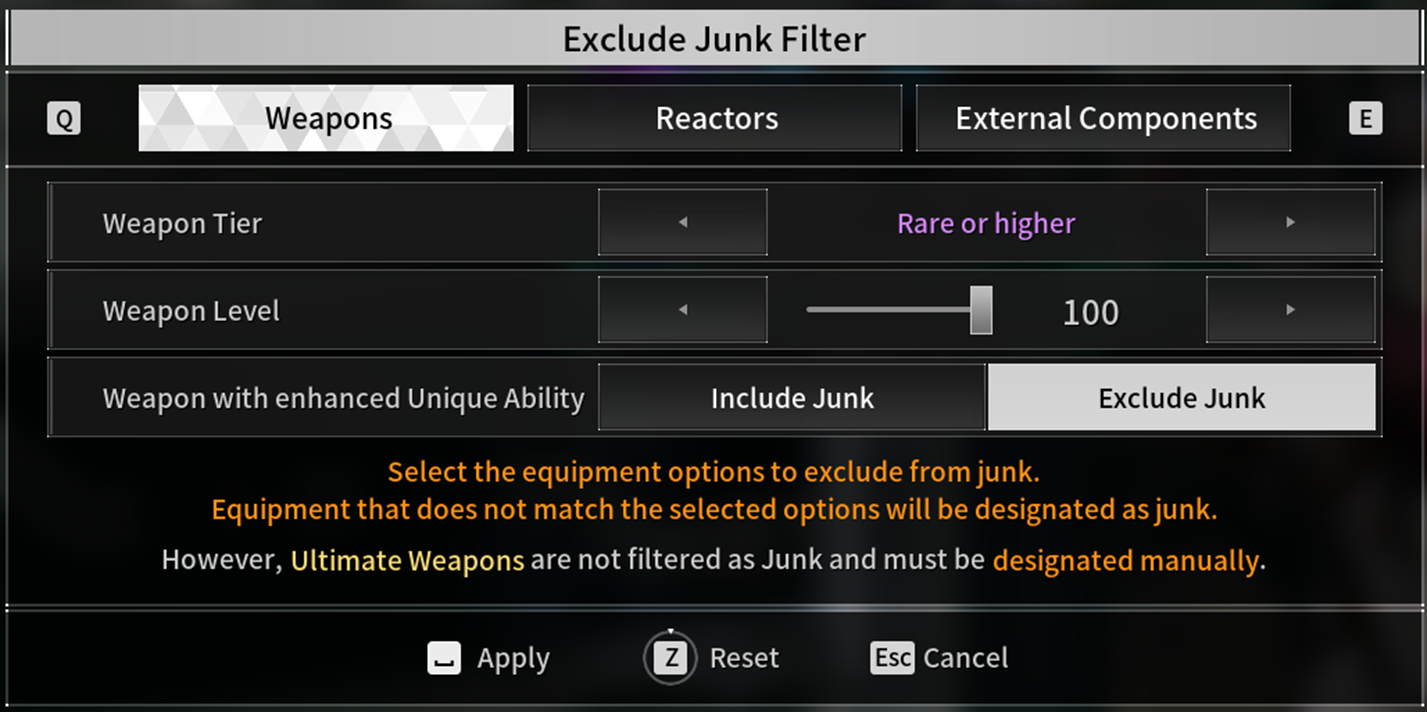
① Exclude Junk Filter
- Dismantle unwanted weapons/reactors/external components. The items to be dismantled can be selected at once using Designate all as junk (Shift).
- You can set the Tier/Level/Enhancement/Set Effects options of items to be excluded from junk using the Exclude Junk Filter function.
② View Attached Items 
- Attached Items can be registered hovering over an item and selecting Register Attached Item (U).
You can check the list of registered items using the View Attached Item function.
- Items registered as Attached Items cannot be designated as junk and cannot be dismantled.
- Items registered as Attached Items cannot be selected as Weapon Level Transmission or Enhancement Materials.
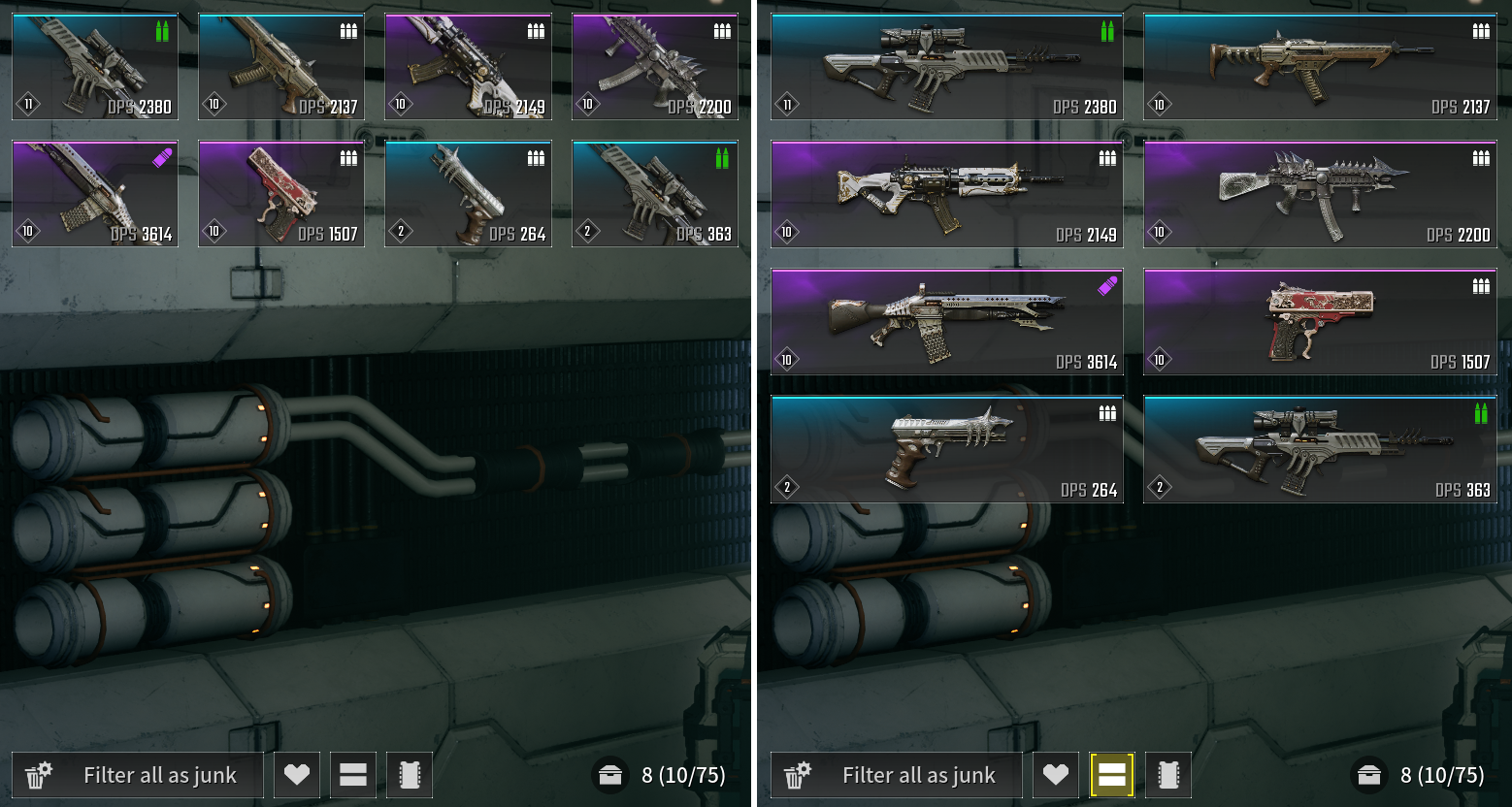
③ Change Display Style 
- The size and placement of the item UI can be changed by clicking on the Change Display Style function.
|
<UI with changed display style |
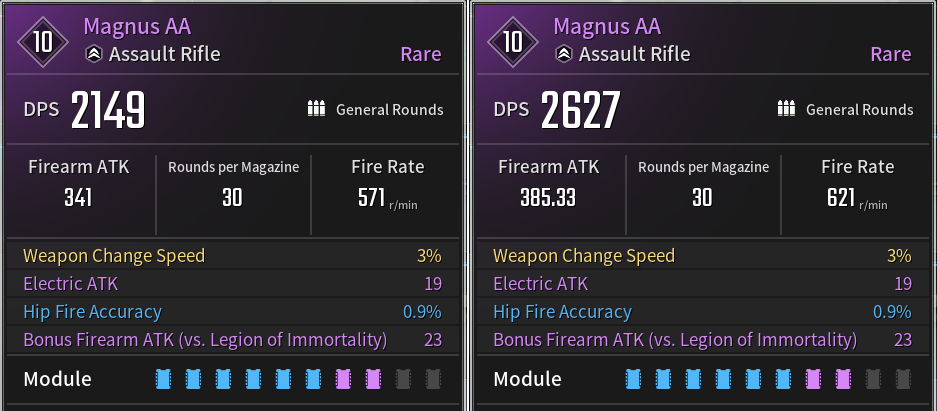
④ View Module Stats 
- Shows firearm stat information including module stats such as DPS, Firearm ATK etc. when hovering over an item.
|
<View Module Stats before & after> |
3. Inventory Guide 
- The Inventory Guide, which is displayed when clicking each UI for the fist time, can be viewed at any time by clicking on the question mark  icon.
icon.
4. Shops
1) Inbox
- When you purchase Caliber, it will be sent to Inventory (I) > Store > Storage. You can use items after claiming them from the inbox.
|
|

2) Check Caliber
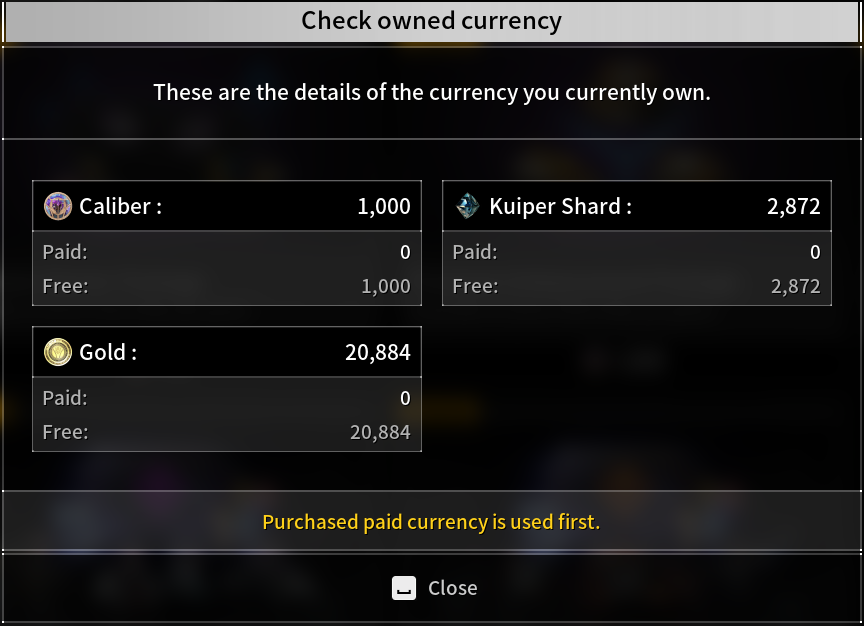
- Go to Inventory (I) > Shop > View Currency Info (V) to see the details of your paid/free currencies.
- Currencies are used in the order of paid > free currencies.
|
|